Drawing faster: placing symbols and running commands without hunting for them
Drawing a schematic is mostly two things repeated hundreds of times: put a symbol on the folio, and run a command on what you just drew — rotate it, wire it, delete it, draw a line. Traditionally QElectroTech made you drag every symbol from the Collections panel and fetch every command from a menu or toolbar at the edge of the window, far from where you are working.
This page covers a set of features that bring both to the cursor. Several are modelled on SolidWorks, which many users know: its S shortcut bar, its context toolbar, Enter to repeat, command search and mouse gestures. They were proposed in discussion #676 and discussion #1033, and were built as a series of small pull requests, one per feature.
Status: merged. Every feature on this page is in QElectroTech's master branch (the last pull requests merged on 27 September 2026), so it is in current development builds.
| § | Feature | How you reach it | Pull request |
|---|---|---|---|
| 1 | Place a symbol without dragging, and place the last one again | Double-click or Enter in Collections; A | #1042 |
| 2 | Placing from the right-click menu | Right-click an empty spot | #1041, #1050 |
| 3 | Ranked collection search | The Collections search box | #1051 |
| 4 | Element picker at the cursor | Insert | #1052 |
| 5 | Shortcut bar | S | #1053 |
| 6 | Customising the shortcut bar in place | "…" on the bar | #1054 |
| 6 | Your own symbols on the bar, and its width | Éléments in the edit window; the bar's corner grip | #1060 |
| 7 | Commands beside the selection | Click something | #1055 |
| 8 | Repeat the last command | Enter on the folio | #1056 |
| 9 | Command search | Ctrl+Shift+M | #1049 |
| 10 | Mouse gestures | Right-drag | #1057 |
Menu and option names below are given in French, as QElectroTech shows them until the translations are updated, with an English gloss in italics.
1. Placing a symbol without dragging
In the Collections panel, double-click a symbol, or select it and press Enter. The symbol attaches to the cursor; click on the folio to put it down. You stay in placing mode, so each further click places another copy. Escape or a right-click stops.
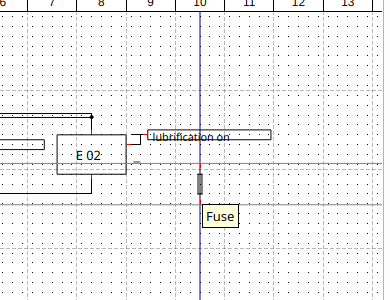
A (Édition → Insérer le dernier élément, "insert last element") starts placing the last symbol you placed again — however you placed it: dragged, double-clicked, from the picker or from the shortcut bar. It is disabled until you have placed something in this session.
What changes for existing users
Double-clicking a symbol in Collections used to open it in the element editor. It now places it. Editing a symbol stays on the Collections right-click menu, and a preference brings the old behaviour back:
Configuration → Configurer QElectroTech → Général → Apparence → Double-cliquer dans la collection ouvre l'éditeur d'élément au lieu de l'insérer (double-click in the collection opens the element editor instead of inserting).
With no folio open, or on a read-only project, double-click still opens the editor, since there is nowhere to place.
2. The folio's right-click menu
Right-click an empty spot on a folio. The menu puts drawing first:
| Entry | Does | Since |
|---|---|---|
| Renvoi de folio ▸ (folio reference) | places a folio report arrow where you right-clicked | #1050 |
| Insérer le dernier élément (insert last element) | starts placing the last symbol again, as A does; shown once something has been placed | #1050 |
| Ajouter ▸ (add) | text, image, PDF, line, rectangle, ellipse, polyline, curve, terminal strip | merged (#1041) |
| Propriétés du folio (folio properties) | the folio's properties dialog | merged |
| Lignes et colonnes ▸ (rows and columns) | add or remove a row or a column | merged — moved one level down by #1041 |
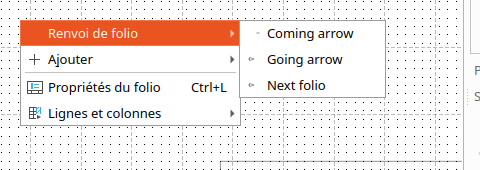
Which arrows "Renvoi de folio" lists
It lists the folio report symbols your project already uses, read from the project's embedded collection — typically two to seven per project, with dated copies of the same symbol shown once. That keeps the list to the arrows your drawings actually use rather than the 48 folio-referencing symbols in the shipped collection.
A project that has none yet gets the common collection's Coming arrow and Going arrow. If the common collection isn't available either, the submenu is hidden. It is also hidden on a read-only folio.
For what a folio report does once placed, see Linking wires across pages.
3. Searching the collection, best match first
Typing in the Collections search box now gives one flat list, best match first, instead of the folder tree filtered down to matching branches. Down arrow and Enter place the highlighted symbol (with §1). Clearing the box brings the tree back.
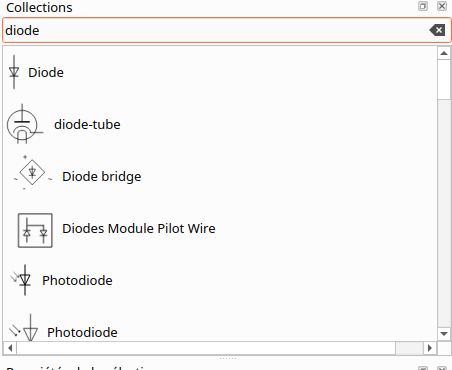
How results are ordered
| Rank | The search text… | Example for diode |
|---|---|---|
| 1 | is the whole name | Diode |
| 2 | starts the name | diode-tube, Diode bridge |
| 3 | appears in the name (earlier is better) | Photodiode |
| 4 | appears only in the symbol's information fields (manufacturer, reference…) | — |
Within a rank, shorter names come first. Case is ignored. The search matches symbols' displayed names in your language, not their file names.
4. The element picker (Insert)
Press Insert with the mouse over the folio (Édition → Insérer un élément…). A small window opens at the cursor:
- With the search box empty it shows your palette: a grid of the symbols you use most.
- Type, and it searches the whole collection, ranked as in §3.
- Enter starts placing the highlighted symbol; Escape closes the picker without doing anything.
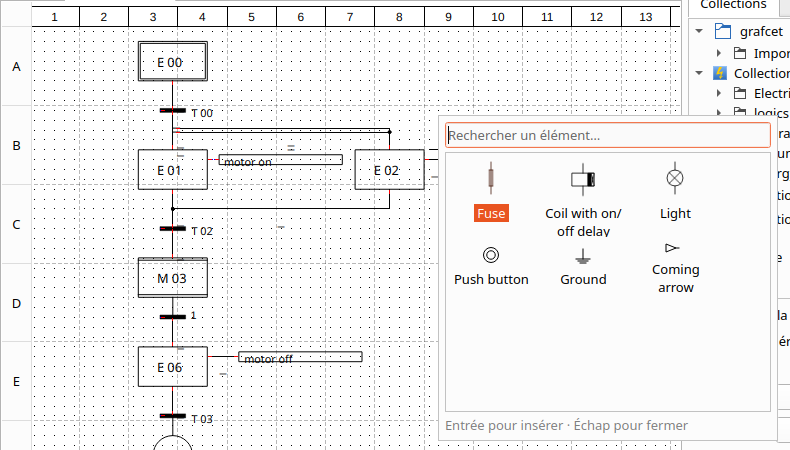
Setting up your palette
The palette is simply your user collection (Collection utilisateur in
the Collections panel). Whatever you put there — by dragging symbols into it
from the QET collection, or with the folder tools described in
Managing collections — shows in the grid, in
file-name order, so prefixing names with 01_, 02_… sets the order.
Sub-folders are shown too. The grid shows at most 60 symbols.
Because it is an ordinary collection folder, a palette can be shared the same way as any collection, and there is nothing extra to back up.
5. The shortcut bar (S)
Press S with the mouse over the folio (Édition → Barre de raccourcis). The element picker opens at the cursor with a row of command buttons on top, chosen for what is selected — the same idea as SolidWorks' S key.
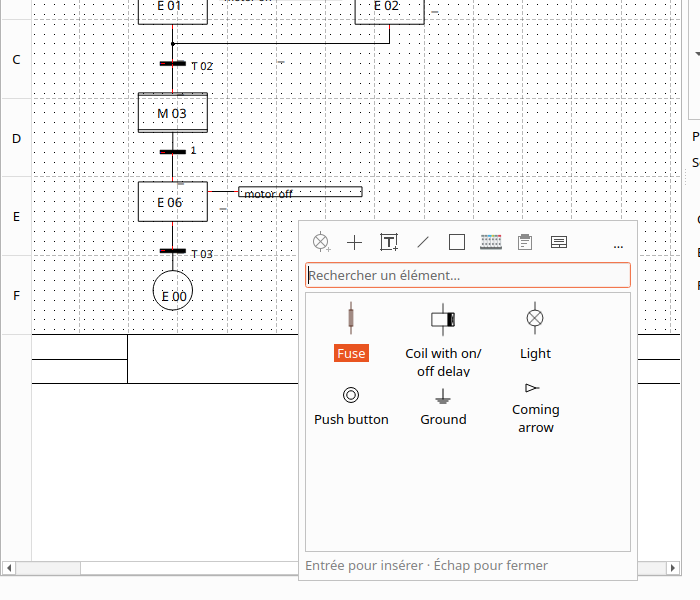
| What is selected | Default commands |
|---|---|
| Nothing | Insert last element, element picker, text, line, rectangle, terminal strip, paste, folio properties |
| Only wires | Reset the wire's path, edit, delete |
| Anything else | Rotate, orient texts, edit, copy, cut, delete |
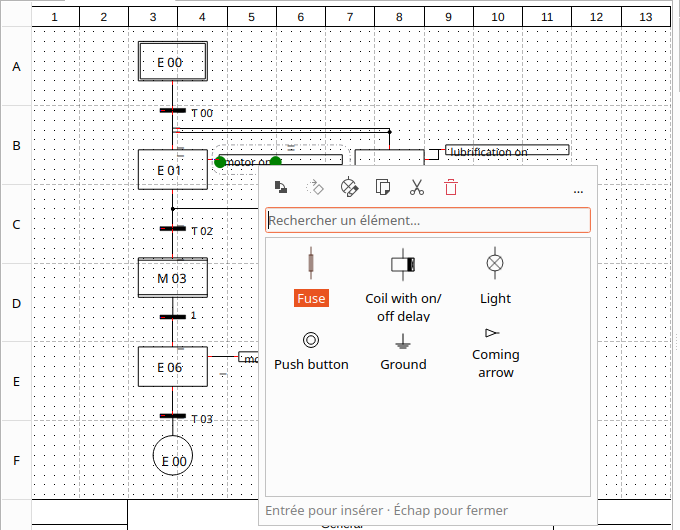
Each button runs the same command as the menu — hover it for the name. Escape closes the bar without doing anything.
Choosing the commands
Configuration → Configurer QElectroTech → Barre de raccourcis (shortcut bar): pick the selection type under Contexte, then move commands between Commandes disponibles (available) and Dans la barre, dans l'ordre (on the bar, in order) with Ajouter → and ← Retirer, and reorder them with Monter / Descendre or by dragging. Valeurs par défaut (defaults) restores them. Any command QElectroTech knows can go on the bar.
These choices are stored in your QElectroTech settings, never in a project, and are not part of undo.
6. Customising the shortcut bar
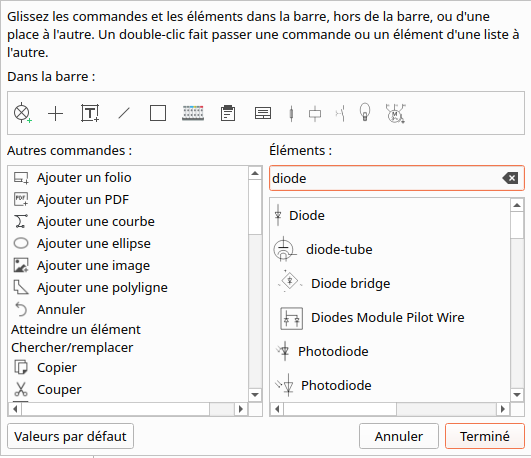
Click … at the right end of the bar's command row. An edit window opens in the bar's place:
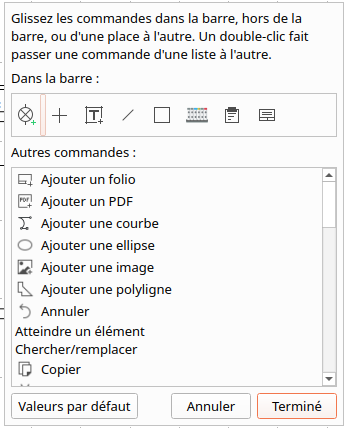
| To… | Do |
|---|---|
| add a command | drag it from Autres commandes (other commands) onto the bar |
| remove one | drag it off the bar, or double-click it |
| reorder | drag it along the bar |
| go back to the defaults | Valeurs par défaut |
| save | Terminé (done) — the bar reopens showing the result |
| leave unchanged | Annuler, Escape, or close the window |
It edits the list for the kind of selection the bar was opened on (nothing, wires, or anything else). The palette below is not edited here; it is your user collection (§4) — but you can put symbols on the bar itself, next to the commands, as described next.
Putting your own symbols on the bar
The symbols you use all day — a fuse, a coil, a contact, a lamp, a motor — can sit on the bar as icons beside the commands, so placing one is S and one click.
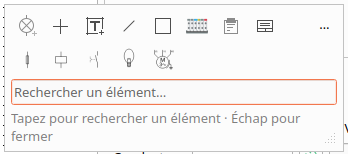
Open the edit window (… on the bar with nothing selected). Beside Autres commandes there is an Éléments (elements) column with a search box. Type at least three letters of a symbol's name; the matches appear with their icons, best first, as in the Collections search (§3).
| To… | Do |
|---|---|
| pin a symbol | drag it from the Éléments list onto the bar, or double-click it |
| pin the best match quickly | type its name and press Enter — the window stays open for the next one |
| move it along the bar | drag it, like a command |
| unpin it | double-click it on the bar, or drag it off the bar onto Autres commandes |
| keep the changes | Terminé, as for commands |
Then, on the bar, click a symbol's icon to start placing it — the same as choosing it in the element picker. Hover an icon for the symbol's name.
Good to know:
- Symbols can only be pinned to the bar you get with nothing selected. With something selected, the bar is for working on that selection.
- Once at least one symbol is pinned there, the palette grid (§4) is no longer shown under the bar — your pinned symbols replace it. The search box is still there, and the list comes back as soon as you type.
- Symbols embedded in a project (Imported elements) are not offered: only symbols from the QET, company and user collections, which exist in every project. A pinned symbol that is later deleted from its collection simply disappears from the bar.
- The Barre de raccourcis preferences page (§5) lists pinned symbols by name among the commands, so you can reorder them there; ← Retirer unpins one.
- After Terminé, the bar reopens at the mouse pointer, not where the edit window was. The edit window remembers the size you leave it at.
Making the bar narrower
A bar with many commands and symbols gets long. Drag the small grip in the bar's bottom-right corner (Glisser pour changer la largeur de la barre) to the left: the icons wrap onto more rows as the bar narrows, and the bar grows downwards to fit. The width is remembered — the bar opens at that width from then on. Until you drag the grip, all icons stay on one row.
7. Commands beside the selection
Click a symbol, text or wire and a small bar of commands appears just above and to the right of the cursor — SolidWorks' context toolbar. It holds the first eight commands of the shortcut bar's list for that selection (§5), so customising one customises the other.
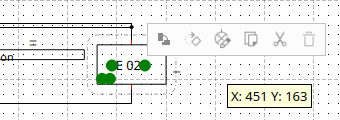
It fades as the mouse moves away and disappears beyond about 200 pixels, or at the next key press. It does not appear after dragging something, while placing a symbol or running a drawing tool, or on a read-only folio.
It is on by default. Turn it off with Configuration → Configurer QElectroTech → Général → Apparence → Afficher les commandes près de la sélection (show the commands near the selection).
8. Enter repeats the last command
Press Enter on the folio to start the last drawing or placing command again. Draw a line, press Escape, press Enter — you are drawing another. Place a fuse, Escape, Enter — you are placing another fuse.
What counts as "the last command":
- the last tool from Ajouter (text, line, rectangle, ellipse, polyline, curve, image, PDF, terminal strip), however you started it, or
- the last symbol placement, however you started it (drag, double-click, picker, shortcut bar, right-click menu).
The Édition menu shows what Enter will repeat, as Répéter : … (repeat):
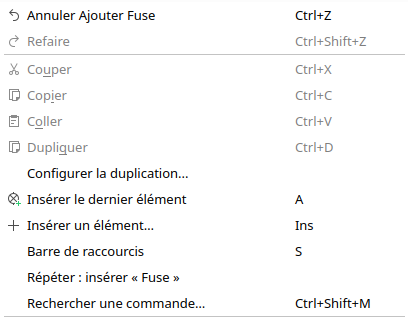
Enter only repeats when nothing else is using it: not while a drawing tool or a paste is in progress (Enter finishes those, as before), not while you are typing in a text, and not in any search box or dialog. With nothing to repeat yet, Enter does nothing. The menu entry has no key of its own, but you can give it one in the Shortcuts preferences.
9. Command search (Ctrl+Shift+M)
Press Ctrl+Shift+M (Édition → Rechercher une commande…), type part of any command's name, and press Enter to run it — like SolidWorks' Search Commands or the command palette of many editors. Useful for the command you know exists but can't find in the menus.
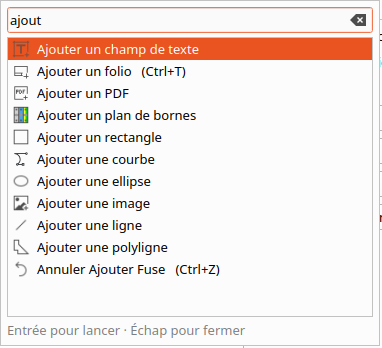
- It searches every command of this window that has a shortcut entry — the same list as the Shortcuts preferences page — by the name shown in your language.
- Accents, case and the menu underline marker are ignored:
ellip,Ellipandéllipall find Ajouter une ellipse. - Best matches first: names that start with your text, then names with a word starting with it, then names containing it.
- A command that can't run right now (for example Couper with nothing selected) is listed greyed out and does nothing.
- Each command's own shortcut is shown next to it, so the search doubles as a way to learn the keys.
The drawing tools (Ajouter un rectangle, Ajouter une ellipse…) are found too; they were given shortcut entries for the purpose, with no key assigned — which also means you can now give them keys in the Shortcuts preferences.
10. Mouse gestures (right-drag)
Hold the right mouse button and drag in any direction: a ring of up to eight commands appears around the point where you pressed. Drag toward one — its slice lights up and its name shows below — and release to run it. Drag back to the middle before releasing to run nothing.
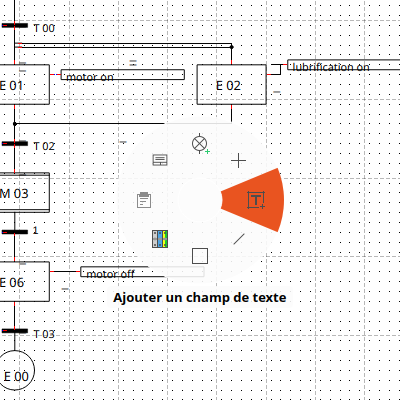
The eight commands are the first eight of the shortcut bar's list for the current selection (§5), clockwise from the top, so a gesture becomes muscle memory: with the default list, right-drag right adds a text field on an empty folio and right-drag up rotates a selected symbol.
A plain right-click still opens the menu — it opens when you release the button rather than when you press it. A right-click while placing a symbol still cancels the placement.
It is on by default. Turn it off with Configuration → Configurer QElectroTech → Général → Apparence → Gestes de la souris avec le bouton droit (right-button mouse gestures); right-click then behaves exactly as before.
All the new keys
| Key | Does | § |
|---|---|---|
| A | place the last symbol again | 1 |
| Insert | element picker | 4 |
| S | shortcut bar | 5 |
| Enter (on the folio) | repeat the last drawing or placing command | 8 |
| Ctrl+Shift+M | command search | 9 |
| Right-drag | gesture ring | 10 |
Every key can be changed in Configuration → Configurer QElectroTech → Raccourcis (shortcuts) (see Preferences reference). None of these keys did anything on the folio before; the element editor and title block editor are separate windows with their own keys.
Limitations
- The palette (§4) is always your user collection folder; there is no setting in the preferences dialog to point it elsewhere.
- Symbols can be pinned only to the nothing-selected bar (§6), and only from the QET, company and user collections.
- Command search, the shortcut bar and gestures only offer commands that have an entry in the Shortcuts preferences page. A handful of panel and dock actions don't.
- Gestures are tested on Linux (X11). On Windows and macOS the platform may open context menus differently; please report anything odd on the PR.
- New menu entries and options are in French only until the translation files are regenerated.
See also
- Keyboard-only control — every other shortcut, and what still needs a mouse
- Managing collections — folders, and building the shortlist that becomes your palette
- Mouse modifiers — Shift, Ctrl and Alt while you drag
- Linking wires across pages — what a folio reference arrow does
- Finding your place on a folio — go to a cell, keep the headers in sight
- Preferences reference — every settings page
