Macro recorder
Do a task once by hand in QElectroTech, with recording on. Then hand the recording to an AI assistant, which turns it into a general, tested script button — "rotate the selected coils half a turn" rather than "rotate KA1 and KA2".
Status: merged on 2 October 2026. Everything on this page is in development builds made since then; it is not in a release yet. The pull requests:
PR What it adds Builds on #1227 recording in QElectroTech: start, stop, the files, the status bar, the request to paste #1223 #1228 the qet_recording_*MCP tools#1225 Both sit at the end of the script buttons series.
Not the same "macros" as templates. QElectroTech's templates — reusable blocks of symbols — live in a folder called
macros. The macro recorder has nothing to do with them: it records what you do, and its result is a script.
Menu and option names are given in French, as QElectroTech shows them until the translations are updated, with an English gloss in italics.
Why a recording, and not a replay
Describing a drawing task in words to an assistant is slow and easy to get wrong. Showing it is quicker. But replaying your mouse clicks would break as soon as anything on the sheet moved, so the recorder does not keep clicks. It keeps what changed, step by step, and the whole project before and after. The assistant writes a script from that, and checks the script reproduces exactly the change you made.
QElectroTech cannot send anything to an assistant itself: the assistant asks, QElectroTech answers. So the recording is saved where the assistant's MCP server can read it, and you hand it over with one paste.
Recording
- Open the project and select what the task starts from (the selection is recorded too).
- Projet > Scripts > Enregistrer une macro (Project > Scripts > Record a macro). It is also a command in command search (Ctrl+Shift+M) and on the S shortcut bar if you add it.
- Do the task. The status bar shows ● Enregistrement : N étape(s) (Recording: N steps) with an Arrêter (Stop) button.
- Stop: Arrêter, or the same menu entry, which is ticked while recording.

A box, Macro enregistrée (Macro recorded), gives the recording's name (Macro du 02/10/2026 14:30), its number of steps and its folder:
| Button | Does |
|---|---|
| Copier la demande pour l'assistant (Copy the request for the assistant) | copies a ready-made request to paste into the assistant's chat |
| Ouvrir le dossier (Open the folder) | opens the recording's folder |
| Fermer (Close) | closes the box; the recording stays saved |
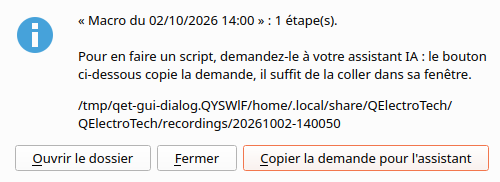
Recording needs no setting: it only writes files. Turning it into a script does — see below.
What counts as a step
Every entry the task adds to the undo history (Annulations, Undo panel) is one step: its name as the Undo panel shows it, which sheet, what was selected after it, and the sheet as it was after it. Because steps come from the undo history, any command QElectroTech has is recorded with nothing to teach the recorder.
- An undo during the recording is recorded as a step too.
- Several moves of the same item in a row merge into one step, as they do in the undo history. The before-and-after result is still exact.
- Closing the project while recording stops it and keeps the steps so far, but there is then no "after" project, and the recording says so.
Where it is saved
In the recordings folder of your QElectroTech data folder, one folder per
recording:
| System | Folder |
|---|---|
| Linux | ~/.local/share/QElectroTech/QElectroTech/recordings/ |
| Windows | %APPDATA%\QElectroTech\QElectroTech\recordings\ |
| macOS | ~/Library/Application Support/QElectroTech/QElectroTech/recordings/ |
recordings/<id>/
    recording.json   name, project, start and stop time, the steps
    before.qet       the whole project when you started recording
    after.qet        the whole project when you stopped
    steps/003.xml    the sheet the step happened on, as it was after step 3
qet-assistant.json (see
script buttons) lists the recordings and
whether one is under way; in live mode,
qet_live_status says so too.
On a very large project, saving before.qet and after.qet can take a few
seconds, as saving the project does — at start and stop only, not at each
step.
Turning it into a script
Paste the copied request into the assistant's chat. It names the recording and
asks the assistant to read it with qet_recording_read, write a script that
does the same in general (on the selected items rather than on those
particular ones), check it with qet_recording_check until it matches, then
offer it as a button with qet_script_install. You can add to it: "…and make
it work on every sheet".
| Tool | Does | Needs QET_ENABLE_SCRIPTING=1 |
|---|---|---|
qet_recording_list |
the recordings, newest first: id, name, steps, project | no |
qet_recording_read |
one recording as structured changes — each step's name, sheet, selection and what changed on the sheet ("element KA1 moved by (20, 0)", "wire added between …") — and the overall change from before to after | no |
qet_recording_check |
runs a script on a copy of before.qet, starting from the same sheet and selection you had, and compares the result with after.qet: matches, or what differs |
yes |
qet_recording_remove |
deletes one recording | yes |
qet_recording_check is what makes "the script does what I did" a measured
fact rather than the assistant's guess. A rotation by the wrong angle, a
script that does nothing, or one that fails — each is reported, the last with
the line that failed.
Worked example
- Select the two coils on a sheet.
- Projet > Scripts > Enregistrer une macro.
- Rotate the selection twice (Space, Space).
- Arrêter → Copier la demande pour l'assistant → paste into the chat.
- The assistant reads 2 steps, writes "rotate every selected symbol by 180°",
and
qet_recording_checkreports a match. A first try at 90° would be reported a quarter turn off. - It installs the script; a Scripts toolbar button appears. Next time, select any symbols and click it.
Limitations
- One project per recording.
- No clicks or positions replayed — on purpose, see above.
- QElectroTech does not call an assistant itself. That would mean API keys, network access and a choice of provider inside QElectroTech: a different project.
- macOS has not been tested.
See also
- Script buttons — where the resulting script ends up
- Live mode — the assistant acting in the open project
- MCP server and Connecting an AI assistant
- JavaScript Scripting
