Wires per terminal: limits and chains
A real terminal takes one or two wires — four at most, with a double ferrule either side of the screw. A folio report (the arrow that carries a wire to another sheet) is not a terminal at all: it is a virtual point, and the clearest drawing gives it exactly one wire. QElectroTech has never checked either: any number of wires can be connected anywhere, and a drawing that looks fine can be impossible to wire in the workshop.
This page covers a set of optional rules that make QElectroTech check this while you draw and list the places where an existing drawing breaks it. They were asked for in discussion #1158.
Everything here is off until you turn it on. A project that never uses these rules is drawn and saved exactly as before, and one switch in the preferences turns all of them off for every project.
It is experimental. The rules count the wires on a terminal as QElectroTech represents them today. If wires and conductors become separate objects in a future version, these rules — and the values you set — may have to change. QElectroTech says so in a warning pop-up when you turn a rule on (a limit where there was none, or one wire per folio report).
Status: partly merged. §1–§4 and §7 are merged. §5 and §6 are still pending; each names its own pull request, check it before trying that section against your own build.
| § | Feature | Where | Pull request |
|---|---|---|---|
| 1 | The limits, set for every project, and the master switch | Configurer QElectroTech › Général | #1272 |
| 2 | A project's own limits | Propriétés du projet | #1272 |
| 3 | What is refused, and what is not | while drawing | #1272 |
| 4 | Chains instead of stars | polygon wiring, deleting a symbol | #1273 |
| 5 | Terminals already over the limit | Propriétés du projet | #1274 |
| 6 | A terminal's own limit, set in the symbol | element editor | #1276 |
| 7 | Counting with an AI assistant | qet_check |
#1271 |
Menu and option names are given in French, as QElectroTech shows them until the translations are updated, with an English gloss in italics.
1. The limits, set for every project
Configuration → Configurer QElectroTech, page Général, tab Apparence:

| Option | Default | What it does |
|---|---|---|
| Appliquer les règles de conducteurs par borne des projets (apply the projects' wires-per-terminal rules) — the master switch | ticked | unticked, every rule on this page is off in every project, whatever the project says. The other options grey out |
| Nombre maximal de conducteurs par borne (most wires per terminal) | Sans limite (no limit) | a new wire that would give a terminal more than this is refused. 4 is two double ferrules, one either side of the screw |
| Un seul conducteur par renvoi de folio (one wire per folio report) | unticked | a folio report takes one wire, whatever the limit above |
These values are kept with your other QElectroTech settings, on this computer, and apply to every project that does not set its own (§2). Changing them takes effect at once, in projects already open too.
2. A project's own limits
Projet → Propriétés du projet (Project properties), page Général, the Conducteurs par borne (wires per terminal) group:

- Utiliser les réglages de l'application (use the application's settings) is ticked by default. The fields below then show the values from §1, greyed: that is what this project follows.
- Untick it to give this project its own values. They start from the application's, become editable, and are saved in the project file, so the project keeps them on any computer — useful when a drawing must follow a customer's rule whatever the preferences of whoever opens it.
- A project's own Sans limite beats an application limit: tick the box off and set no limit for, say, a single-line diagram where one drawn wire stands for several.
- With the master switch (§1) off, the whole group greys out with a note, and nothing in it applies.
3. What is refused, and what is not
Refused: drawing a new wire onto a terminal that already has as many wires as the limit — or, with the report rule on, a second wire onto a folio report. While you drag, the terminal shows in red, as for any connection QElectroTech refuses. When you let go, nothing is drawn and a tooltip says why:

(This terminal already has 3 wire(s), the project's limit. Add a terminal to connect one more wire.)
The limit applies to both ends: dragging from a full terminal is refused too.
Also respects the limit:
| Action | What happens at a full terminal |
|---|---|
| Automatic conductor creation (placing or moving a symbol whose terminal lines up with another) | that wire is not created; the others are |
| Multi-paste with automatic connection | same |
qet.addConductor() in a script |
returns false and logs that the limit was reached |
Never refused: wires that are already in the drawing. Opening a project, pasting, undo and redo, and dropping a symbol onto a wire to split it all work as before, even where a terminal is over the limit. Use §5 to find those terminals.
4. Chains instead of stars
Two of QElectroTech's own tools connect several terminals at once, and both used to connect them all to one of them — a star:
- drawing a polygon around terminals to wire them together (also
qet.addConductor()in a script); - deleting a symbol that sat on a potential: QElectroTech rewires the terminals it was connected to, so the potential is not broken.
Six terminals wired as a star give the middle one five wires, which no limit allows. When a wire limit is set, both tools now wire the terminals one after another: starting from the top-left terminal, each time to the nearest one not yet wired. Every terminal in the middle of the chain gets two new wires, the two ends one each, and the result reads as a wiring order. The polygon tool also leaves out a wire whose terminal is already full.
Without a limit (or with only the report rule), both tools build the star as before.
5. Terminals already over the limit
Status: pending. This section describes PR #1274, not yet merged.
The limit only stops new wires, so a drawing made before it was set can still have terminals with too many. In Propriétés du projet, under Conducteurs par borne, press Lister les bornes au-delà de la limite… (list the terminals over the limit):
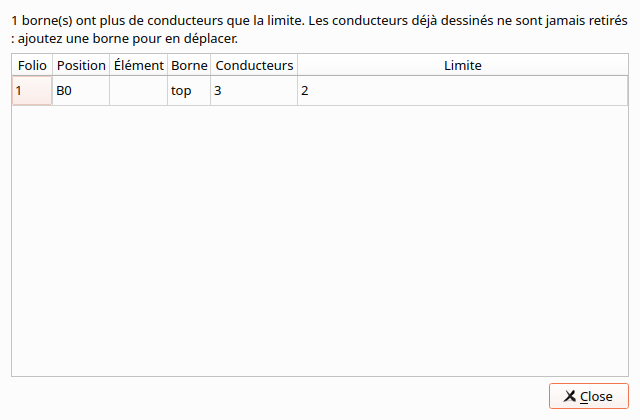
| Column | Meaning |
|---|---|
| Folio | the sheet, counting from 1 |
| Position | the cell of the sheet's border the symbol sits in |
| Élément | the symbol's label |
| Borne | the terminal's name, or its number when it has none |
| Conducteurs | wires on it now |
| Limite | the limit that applies to it: the project's, 1 for a folio report with the report rule, or the symbol's own (§6) |
The list checks against the values shown in the dialog at that moment, applied or not — so you can try a limit, see what it would catch, and cancel. It changes nothing: move wires to a new terminal yourself where it makes sense.
The numbers come from the project database, which gets a view for them,
terminal_wires_view (one row per wired terminal, with its wire count). A
script or the AI assistant server can read the same view
with a query; see The project database.
6. A terminal's own limit, set in the symbol
Status: pending. This section describes PR #1276, not yet merged.
One number for a whole project does not fit every terminal. An earth
terminal takes one wire. A cable or busbar symbol, where one terminal
stands for many wires, should take any number — the most crowded terminal in
the shipped examples, with 19 wires, is a cable symbol in
affuteuse_250h.qet.
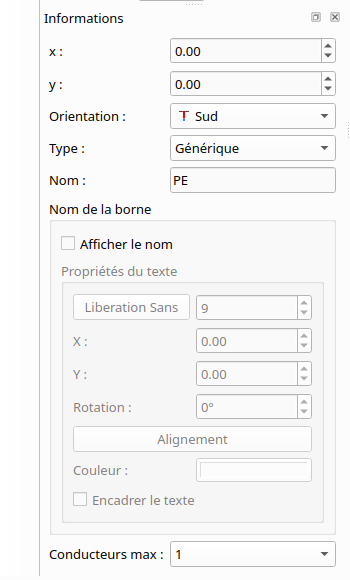
In the element editor, select a terminal: its properties end with Conducteurs max (most wires):
| Choice | Meaning |
|---|---|
| Réglage du projet (project setting) — the default | the terminal follows the project's limit |
| Sans limite (no limit) | the terminal takes any number of wires, even under a project limit — for cable and busbar symbols |
| 1 to 9 | the terminal's own limit, lower or higher than the project's |
The symbol's value only applies when a limit is on for the project. A symbol whose earth terminal says 1 never refuses a wire in a project that has no limit. The report rule (§1) still wins for folio reports.
The value is saved on the terminal in the .elmt file as max_wires="1",
only when it is set; a symbol without it behaves as before. QElectroTech 0.9
keeps the attribute when it opens and saves a project that embeds the symbol.
7. Counting with an AI assistant
The qet_check tool of the AI assistant server gets two
read-only checks, so you can count a project before turning any limit on:
| Check | Reports | Severity |
|---|---|---|
crowded_terminals |
terminals with more than four wires, folio reports left out, with folio, cell, label, symbol type and wire count | info |
reports_with_several_wires |
folio report arrows with more than one wire | info |
Both are information, not errors: cable, busbar and single-line symbols carry more wires on purpose, and a third of the shipped examples' folio reports have several. Over the 24 example projects they find 23 crowded terminals in 10 projects and 130 reports in 4.
They are plain queries on the wires, so they work on any current QElectroTech, with or without the features above.
8. In the file
| Where | What is stored | When |
|---|---|---|
your QElectroTech settings, group diagrameditor |
wiring_rules_enabled (master switch), wiring_rules_max_wires, wiring_rules_one_wire_per_report |
always, on this computer only |
the project, <wiring_rules …/> under <project> |
the project's own values: max_wires_per_terminal="2", one_wire_per_report="true" |
only when the project sets its own (§2); <wiring_rules/> alone means "its own: no rule" |
the symbol, on a <terminal> |
max_wires="1" |
only when set (§6) |
A project that follows the application's settings writes nothing, so it is
saved exactly as before. An older QElectroTech drops a project's
<wiring_rules> element when it saves, which simply means "back to no
rule".
Limitations
- The rules count wires on a terminal. They do not know about ferrules, bridges inside a terminal strip, or how many conductors a real device's data sheet allows: the numbers are yours to set.
- A project opened on another computer follows that computer's preferences, unless the project has its own values (§2).
- Wires already in the drawing are never removed or moved; §5 lists them, the rest is up to you.
See also
- Conductors — wire properties, the wiring list, and hops where wires cross
- Preferences reference — every settings page
- Using the element editor — terminals and their properties
- Terminal strips — where wires land on real terminals
- Linking wires across pages — folio reports
- The project database — the views a query can read
- AI assistants — the
qet_checktool
